
munis:po_receiving
This is an old revision of the document!
PO Receiving
PO Receiving is the process of telling Munis what items on a PO have been received. You will also be scanning in your packing lists for the items you are receiving.
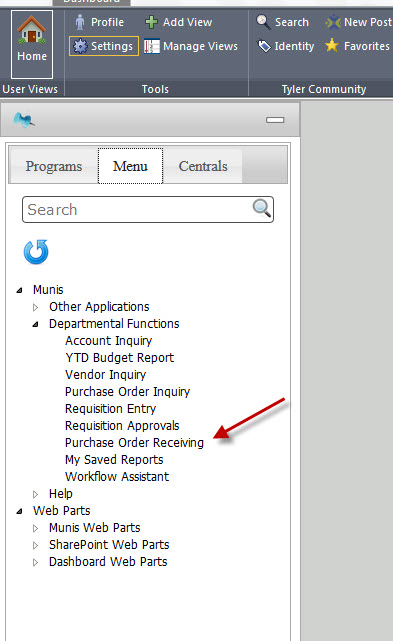
- From the main Munis screen, click on Purchase Order Receiving under Departmental Functions:
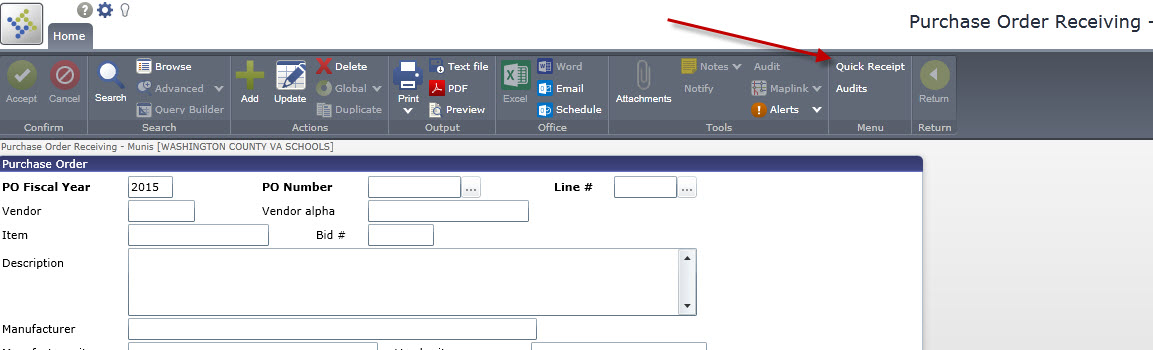
- Click on Quick Receipt:
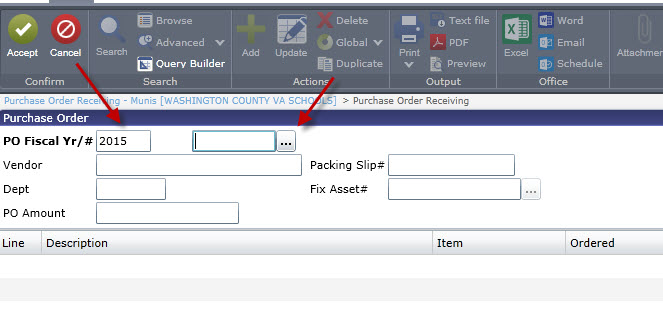
- Enter the Fiscal Year and then click the ellipses to open up a list of POs or just type the PO number in the box:
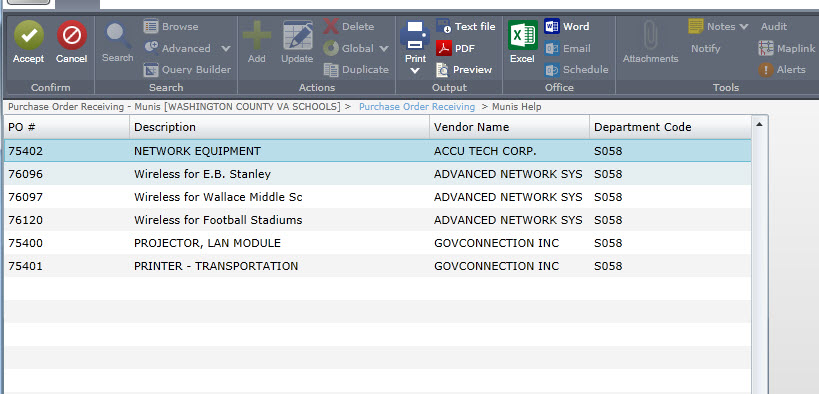
- If you clicked the ellipses, you'll see a list of your POs. Select the correct one and click Accept:
- You need to scan in your packing slip next. Click Attachment, select PO Receivable and then click View Documents:
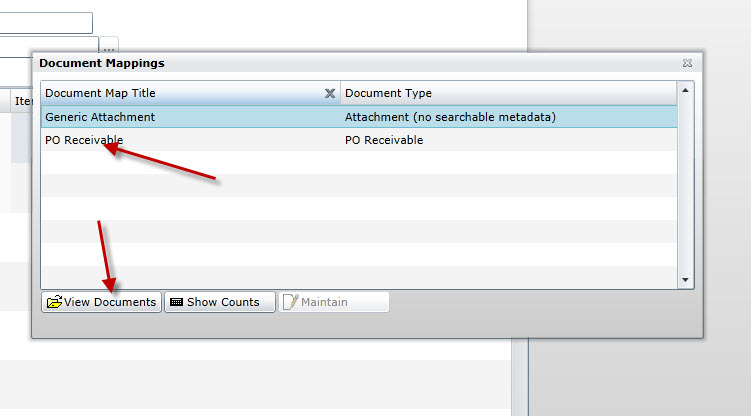
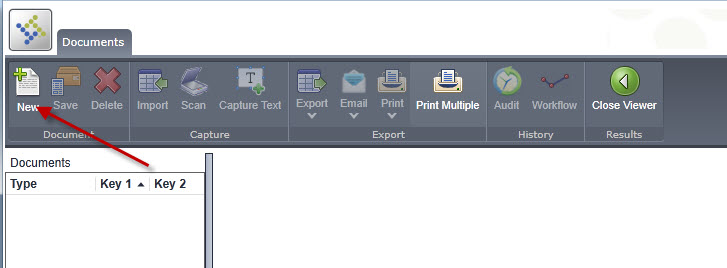
- Click New on the Documents screen:
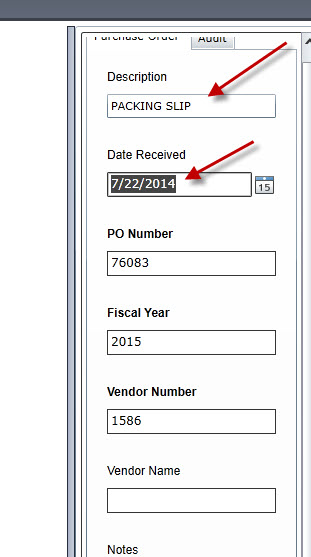
- Enter PACKING SLIP for the Description along with the Date Received. The other fields will be filled in automatically for you:
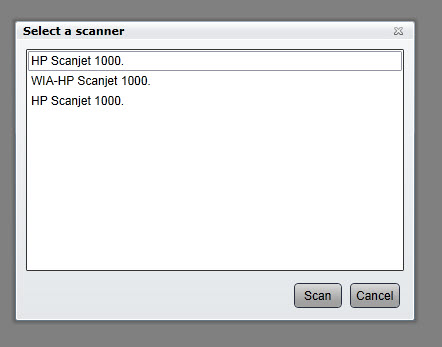
- Click Scan to scan the packing slip in from your scanner. In these examples, it shows the small HP Scanjet 1000. Your screen may be a little different if you are using a different scanner.
- Select your scanner from the list. If there are multiple ones, choose the first one in the list:
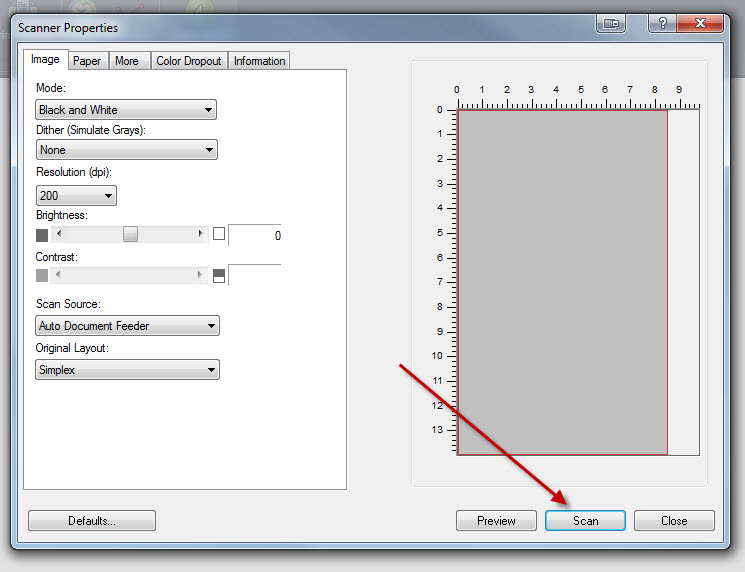
- You can usually select the defaults on the scanning screen. Get your packing slip loaded into the scanner and then click Scan:
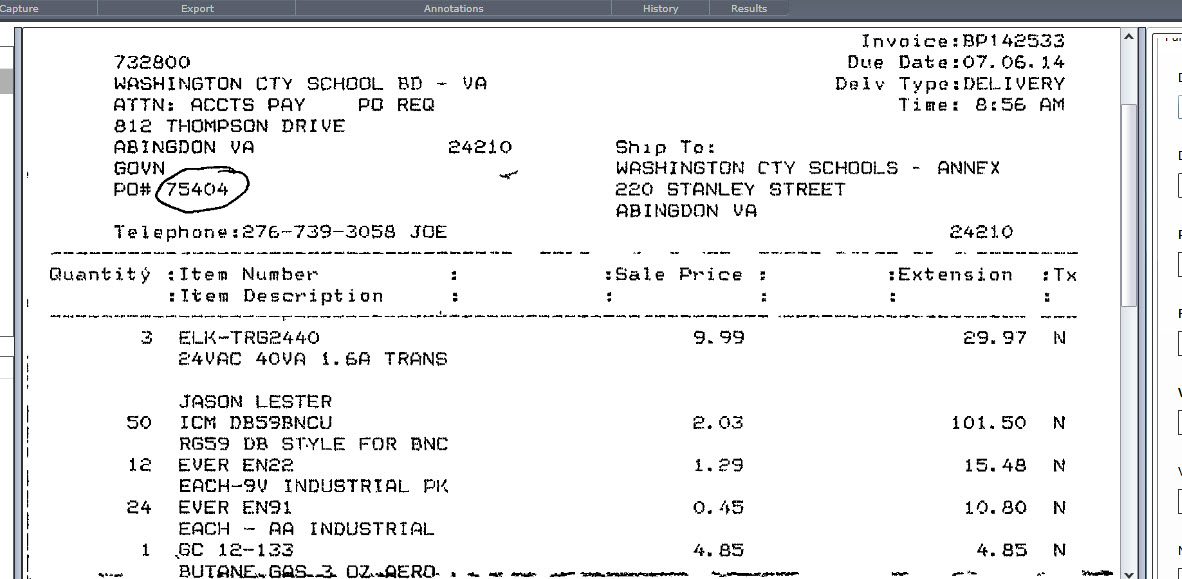
- When it finished scanning, you will be taken back to the Documents screen and your recently scanned document should appear
- Click Save and then Close Viewer to go back to the Quick Receipt page.
munis/po_receiving.1406145296.txt.gz · Last modified: by jlester